Now on the Chrome Web Store

Queue prompts.
Walk away.

Batch-generate Veo videos and Nano Banana images on Google Flow. Paste a list of prompts — or import a spreadsheet — pick a mode, hit Run, and every finished result auto-downloads to a named folder.

🎬 5 generation modes 📥 Auto-download & rename ⟳ Auto-retry on failure 📊 Live progress + log 🗂️ Spreadsheet import
✓ No API key needed✓ Runs in your browser✓ No signup to start
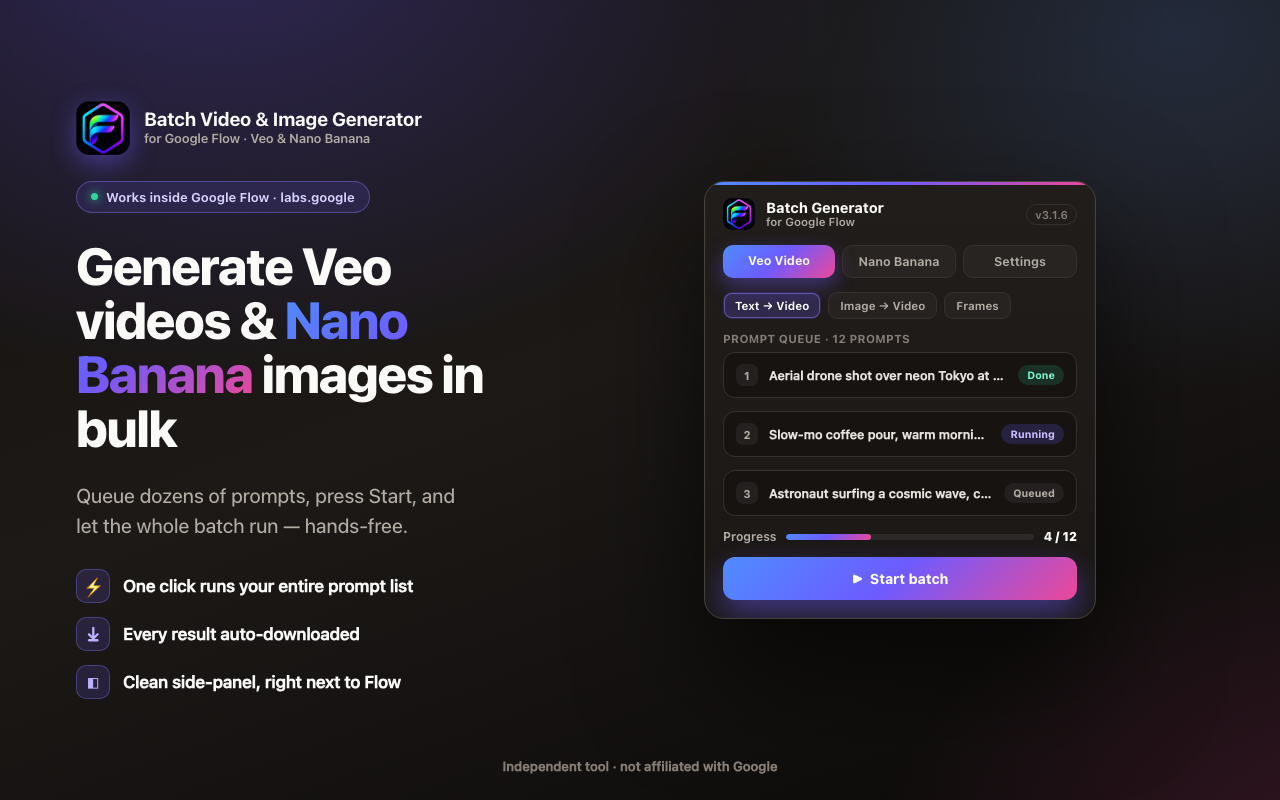
Flow Automation — batch Veo videos & Nano Banana images on Google Flow
Prompts per batch
0
Generation modes
Auto-retry on failure
0
UI languages
Features

Everything to scale your Google Flow workflow

A full automation cockpit — queue prompts in bulk, fine-tune every setting, and let it run unattended while results stream into your folder.

⚡ Batch generation
📝

Bulk prompt queue

Paste a whole list of prompts — one per line — into the side panel and run the entire batch in one go, grouped into reusable projects.

🗂️

Spreadsheet import

Drop in an XLSX or CSV and every row becomes a queued prompt — with its mode picked up per row — so you can plan a shoot list and import it straight into Flow.

🔀

Concurrent prompts

Choose how many generations run at once. Keep it sequential for stability, or raise concurrency to push more renders through Flow in parallel.

🎬 Five generation modes
🎥

Veo video generation

Batch Text to Video, Frame to Video and Ingredients to Video across Veo 3.1 Quality, Fast and Lite — whatever your Flow account exposes.

🍌

Nano Banana images

Generate images in bulk with Text to Image and Image to Image, using Imagen 4, Nano Banana 2 or Nano Banana Pro.

🖼️

Frames & ingredients

Attach start/end frames for Frame to Video, or combine multiple reference images into one animated clip with Ingredients to Video.

🎚️ Output & quality
📐

Aspect ratios & duration

Set landscape 16:9, portrait 9:16 or square 1:1, and pick 4s, 6s or 8s clips — with a concat option to stitch a prompt's video onto the next.

🔢

Multiple outputs per prompt

Ask Flow for several variations of every prompt and download them all — pick the best take without re-running by hand.

🏷️

Download quality control

Choose video quality (720p / 1080p / 4K) and image quality (1K / 2K / 4K) independently, so every saved file matches how you'll use it.

📥 Auto-download & organize
⬇️

Auto-download on finish

The moment Flow finishes a render, the extension saves it — no clicking download on each tile, no babysitting the tab.

📁

Named folders & prefixes

Everything lands in a named subfolder of Downloads (default Flow-Automation) with an optional filename prefix, so each project stays tidy.

✏️

Automatic file renaming

Optional auto-rename turns cryptic Flow filenames into clean, sequential names you can actually sort and find later.

🛡️ Reliability

Auto-retry on failure

If Flow hiccups or a render fails, the extension retries automatically (configurable max retries) before moving on, so one glitch doesn't stall the batch.

⏱️

Randomized prompt delay

A random wait (e.g. 20–30s) between submissions paces requests naturally and keeps long automation sessions stable.

💾

Progress survives reloads

Batch state is saved on-device, so a long run keeps going even if the side panel reloads or Chrome restarts the background worker.

🧰 Workflow & languages
📊

Live progress + action log

A real-time progress bar plus done / running / queued counts, and a scrolling log of every submit, retry and download.

🧱

Clean side-panel UI

The whole tool — queue, controls, progress and settings — lives in a Chrome side panel docked beside your Flow tab, with light, dark and system themes.

🌐

Multi-language UI

English, Español, Tiếng Việt, Français, Deutsch, Português, Italiano, Bahasa Indonesia or Filipino. Settings persist on your device.

Generation modes

One panel, five modes

Pick the mode that fits your input, set it as the project default, and batch it. Every Google Flow media workflow in a single side panel.

🎬

Text to Video

Describe a scene in words and let Veo generate the full clip — run across your entire prompt list automatically.

🖼️

Frame to Video

Provide a start frame — or start and end frame — and Veo animates the motion between them, guided by your prompt.

🧩

Ingredients to Video

Combine several reference images — characters, objects, styles — into one animated clip, keeping your ingredients consistent.

Text to Image

Generate images from text with Imagen 4 or Nano Banana, requesting multiple variations per prompt and downloading them all.

🎨

Image to Image

Feed in an existing image plus a prompt to transform, restyle or edit it — batched across as many sources as you like.

See it in action

From prompt list to filled folder

A quick tour of the batch queue, the auto-download flow, the pacing controls, and spreadsheet import.

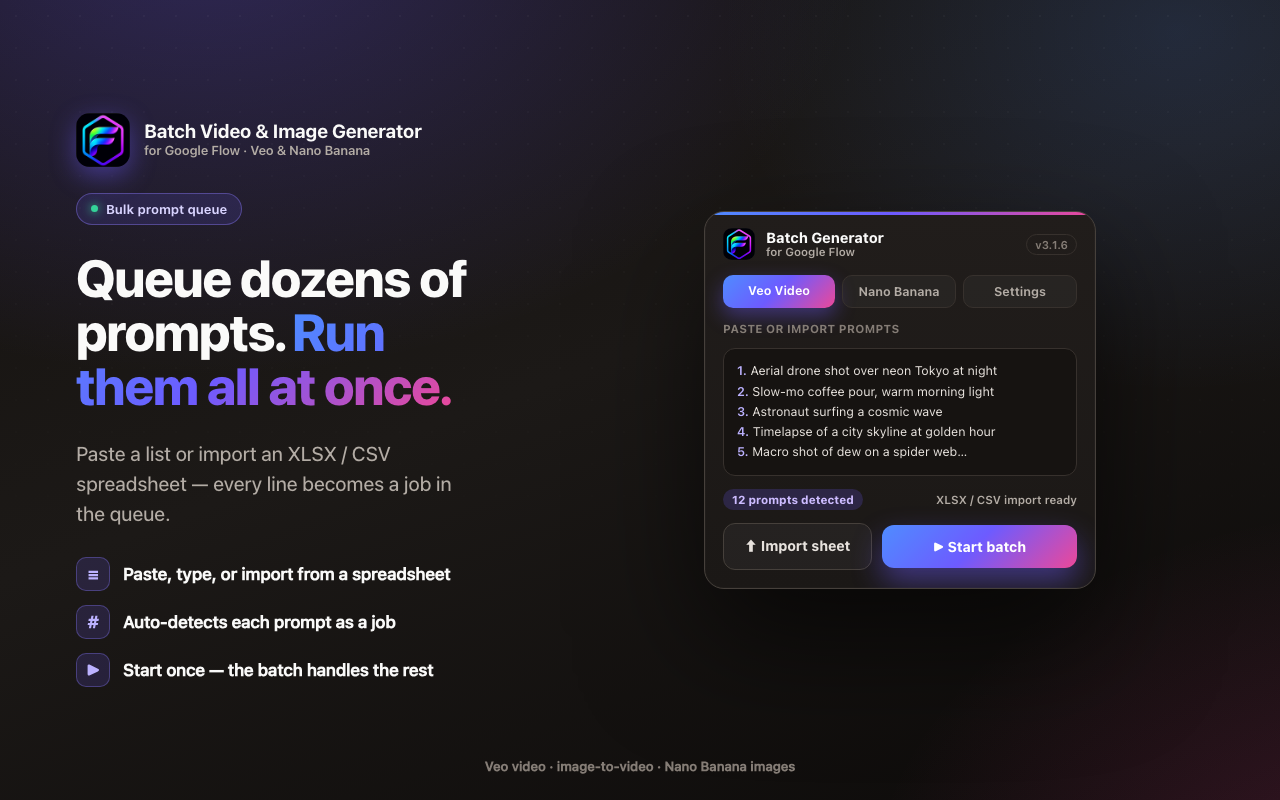
Paste a list of prompts and run the whole batch at once
Queue dozens of prompts — one per line — and run them all at once.
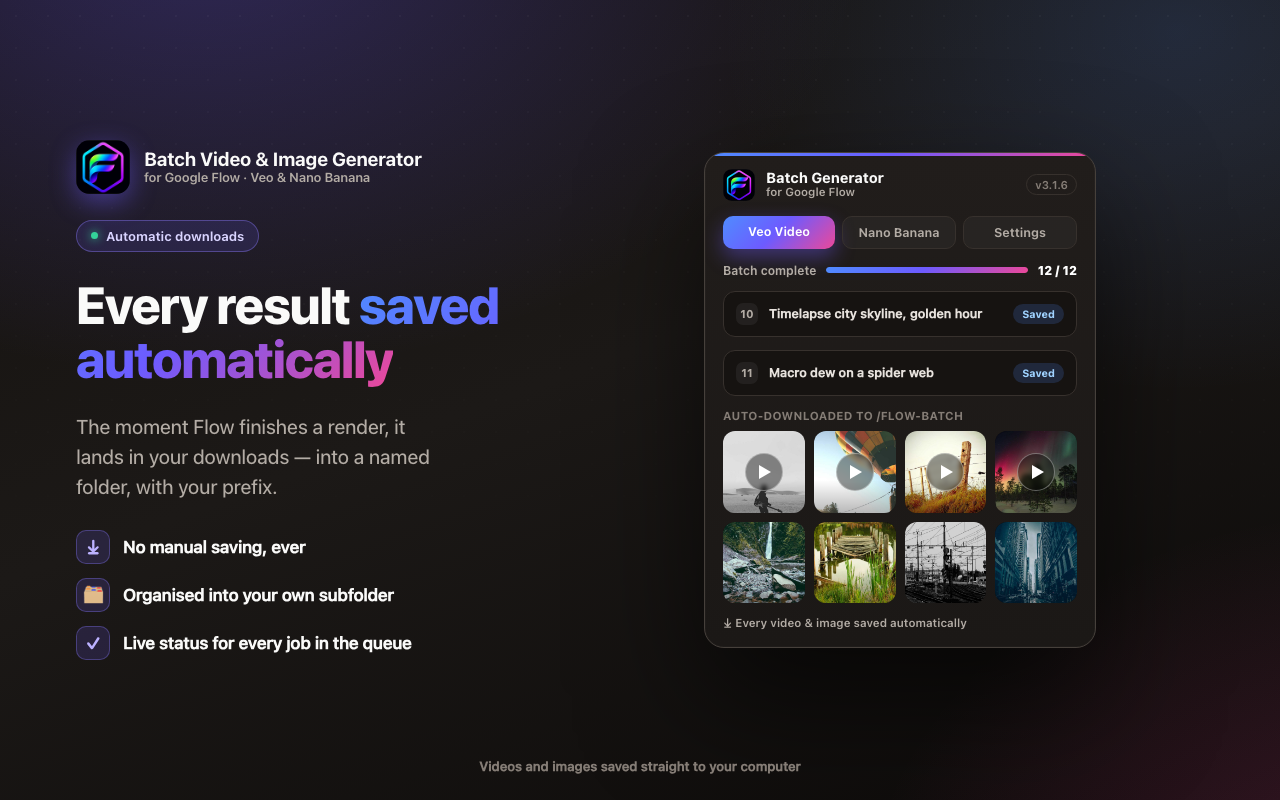
Every generated video and image downloads automatically
Every finished video and image lands in your folder, renamed and organized.
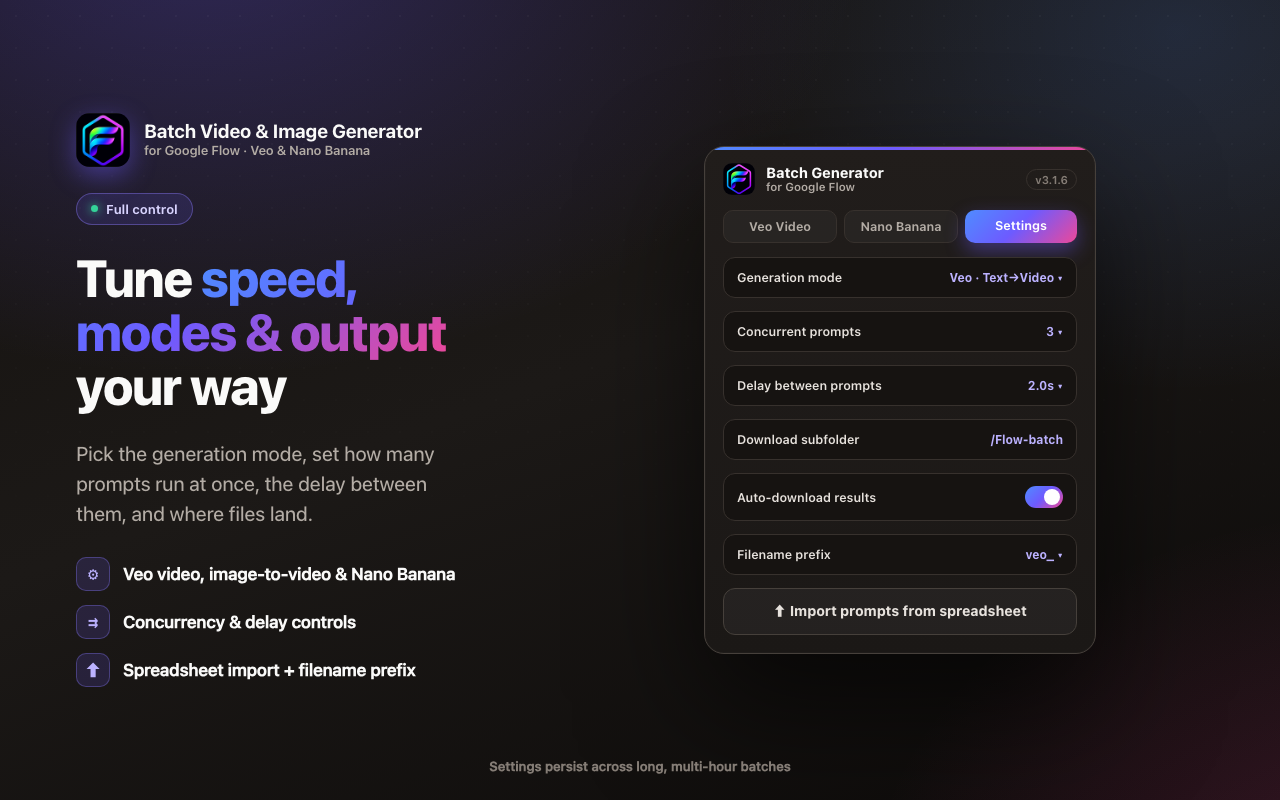
Control concurrency and delay between prompts
Set concurrency and the delay between prompts — long batches keep running.
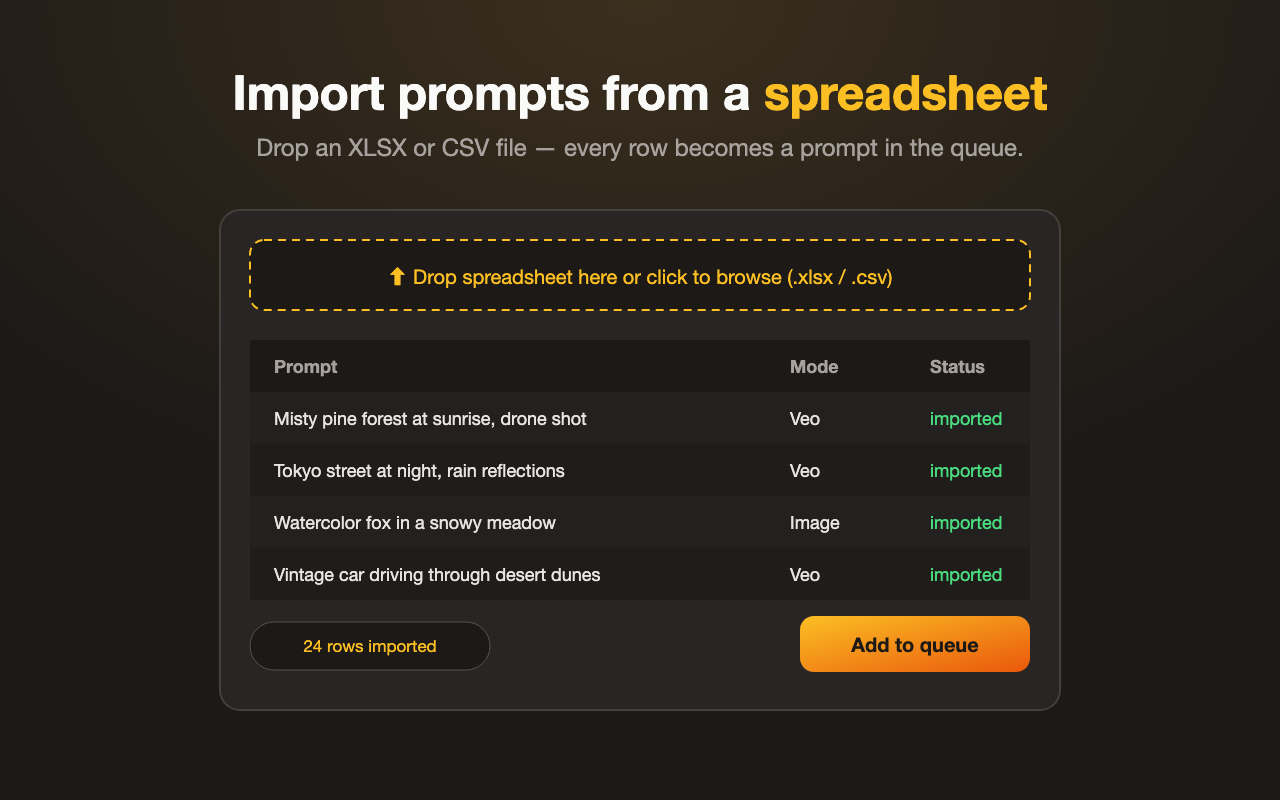
Import prompts from an XLSX or CSV spreadsheet
Import an XLSX or CSV — every row becomes a prompt in the queue.
Built for

Made for people who generate at scale

If you've ever run the same Flow steps over and over, this is for you.

🎞️

Video creators

Render an entire shot list of Veo clips overnight in different aspect ratios and durations, then pick the best takes in the morning.

📣

Marketers & ad creatives

Spin up dozens of video and image variations for A/B testing — multiple outputs per prompt, organized by campaign folder.

🔬

Researchers & prompt engineers

Sweep large prompt sets from a spreadsheet, capture every output with consistent filenames, and review results systematically.

🏢

Agencies & studios

Deliver high-volume client work without manual clicking — keep each client in its own named folder with prefixed, sorted files.

How it works

Three clicks to hands-free

No API key, no scripting. Install, open Google Flow, and run.

1

Install & open Flow

Add the extension, open labs.google/flow in a signed-in tab, click the icon to dock the panel.

2

Add your prompts

Paste a list, or import an XLSX/CSV. Attach frames or reference images if your mode needs them.

3

Set your options

Choose mode, model, aspect ratio, duration, outputs, quality, concurrency, delay and folder.

4

Hit Run

It submits each prompt, waits for the render, retries on failure, and auto-downloads.

5

Walk away

Track live progress and the action log, then come back to a folder of renamed, organized results.

FAQ

Questions, answered

Still stuck? Reach us at androdeveloper24@gmail.com.

Is it really free? What's "Premium"?+

The extension is free to install and use for batch generating on Google Flow. Premium unlocks higher-volume and power-user capabilities — see the Pricing page for the free vs. premium breakdown.

Do I need a Google account or an API key?+

No API key — the extension automates the Flow page inside your own signed-in browser session. You do need access to a Google Flow account at labs.google/flow, and a Google AI plan with Veo access may be required by Google to generate.

Where do my videos and images get saved?+

Into a subfolder of your Chrome Downloads folder — by default Flow-Automation — which you can rename per project, along with an optional filename prefix. To change the parent location, update chrome://settings/downloads.

What happens if a generation fails?+

The extension retries the prompt automatically (configurable max-retries) before moving on, and inserts a randomized delay between prompts. Every retry and result is recorded in the action log.

Which modes, models and aspect ratios are supported?+

Five modes: Text to Video, Frame to Video, Ingredients to Video, Text to Image and Image to Image. Video runs on Veo 3.1 (Quality / Fast / Lite) and images on Imagen 4 or Nano Banana. Aspect ratios are 16:9, 9:16 and 1:1, with 4s / 6s / 8s durations.

Can I import a big prompt list from a spreadsheet?+

Yes. Drop an XLSX or CSV into the side panel and each row becomes a queued prompt, with its mode read per row. Or just paste a list with one prompt per line.

What languages does the interface support?+

English, Español, Tiếng Việt, Français, Deutsch, Português (Brasil), Italiano, Bahasa Indonesia and Filipino. Your language and other settings are stored on your device.

Will a long batch keep running if I switch tabs?+

Yes. Batch state is saved on-device so the run survives side-panel reloads and MV3 background-worker restarts. Keep the Flow tab open and the queue keeps going.

Stop clicking. Start batching.

Free to install. Batch Veo videos and Nano Banana images on Google Flow and auto-download every result.

No API key. No signup to start. Runs entirely in your browser.

⚡ Add to Chrome — Free